How to Make a Digital Vision Board in Canva (and What Canva Can't Do)
Make a digital vision board in Canva in six free steps. Then see the one thing Canva can't do: turn your board into a plan with a first step you can take today.
TL;DR: To make a digital vision board in Canva: create a free account, search "vision board" templates (or start from a wallpaper preset), swap in images that show the life you want, add words that name each dream precisely, and download the board as your phone or desktop wallpaper. The free plan is enough. What Canva can't do is the part that comes after: a board shows the dream, it doesn't produce the steps. This guide covers both halves.
The Six Steps (and the One Thing to Do Differently)
Making a vision board in Canva takes one sitting: open a free account, pick a vision board template or a wallpaper-sized blank, fill it with images and words, and download it to wherever you'll see it daily. No design skill required, and nothing here needs a paid plan.
The one thing to do differently from every other tutorial: write specific captions. "Spend 3 months in Southeast Asia" will matter later; "travel more" won't. Here's the full walkthrough.
Step 1: Start a design sized for where the board will live
Decide where you'll actually see the board before you open the editor. A board buried in a folder does nothing. In Canva, create a design and search "vision board" for ready-made layouts, or pick the phone wallpaper preset if it's going on your lock screen, the desktop wallpaper preset for your computer, or a print-sized document if you want it on a wall.
Step 2: Pick a template or a blank grid
Templates are the fast path, and the free plan includes plenty. Choose one whose layout fits how many dreams you're putting on it: a grid of six to nine cells works better than a loose collage, because each cell forces you to pick one image per dream instead of piling up vague mood shots.
Step 3: Collect your images
Use Canva's built-in photo library, upload your own photos, or both. Search the Elements tab for photos that match each dream. Many people collect images on Pinterest first and upload the best ones; that works well as long as you cap it, one image per dream, or the board turns into a mood board with no center.
Step 4: Make every image specific
Swap generic imagery for imagery that could only belong to your version of the dream. Not any beach: the long-tail town in Thailand you keep reading about. Not any desk: a desk with a view you'd actually work from. Specificity is what makes the next section of this guide possible.
Step 5: Add words that name the goal
Caption each image with a phrase precise enough to act on. "Spend 3 months in Southeast Asia next winter" beats "adventure." "Hold a 15-minute conversation in Spanish" beats "learn languages." Vague captions make pretty boards; precise captions make plannable ones.
Step 6: Download it and put it in your eyeline
Export the finished board and set it as your phone or desktop wallpaper, or print it. Canva's free plan covers standard image downloads. Daily visibility is the whole point of the digital format: the board should ambush you, not wait to be visited.
Do You Need Canva Pro for a Vision Board?
No. The free plan includes vision board templates, a large free photo library, uploads of your own images, and downloads in standard formats. Pro mainly widens the template and stock photo selection and adds brand and resizing tools built for businesses, none of which a personal vision board needs. Start free; upgrade only if you keep hitting locked templates you genuinely want.
What Canva Can't Do
Canva's job ends when the image is finished. It is a design tool, and a very good one, but the finished board is a picture of outcomes with nothing underneath: no goals, no milestones, no steps, no next action. Nothing in the editor asks the only question that moves you: what would have to be true for this image to happen?
That's not a flaw in Canva; it's a category limit. A vision board shows the dream. It doesn't produce the steps, and a board without steps is why most vision boards quietly fail. The fix isn't a better collage. It's pairing the board with a plan, which is the difference between a vision board and an action board.
So make the board in Canva, then take the image that matters most and generate the plan for it automatically: type the goal, and GoalBranch breaks it backward into a tree of steps, ending in a first step you can do in about 20 minutes.
From One Board Image to a Plan: A Worked Example
Say the anchor image on your Canva board is that beach in Thailand, captioned "Spend 3 months in Southeast Asia next winter." Planned backward, that one cell of the collage becomes a tree:
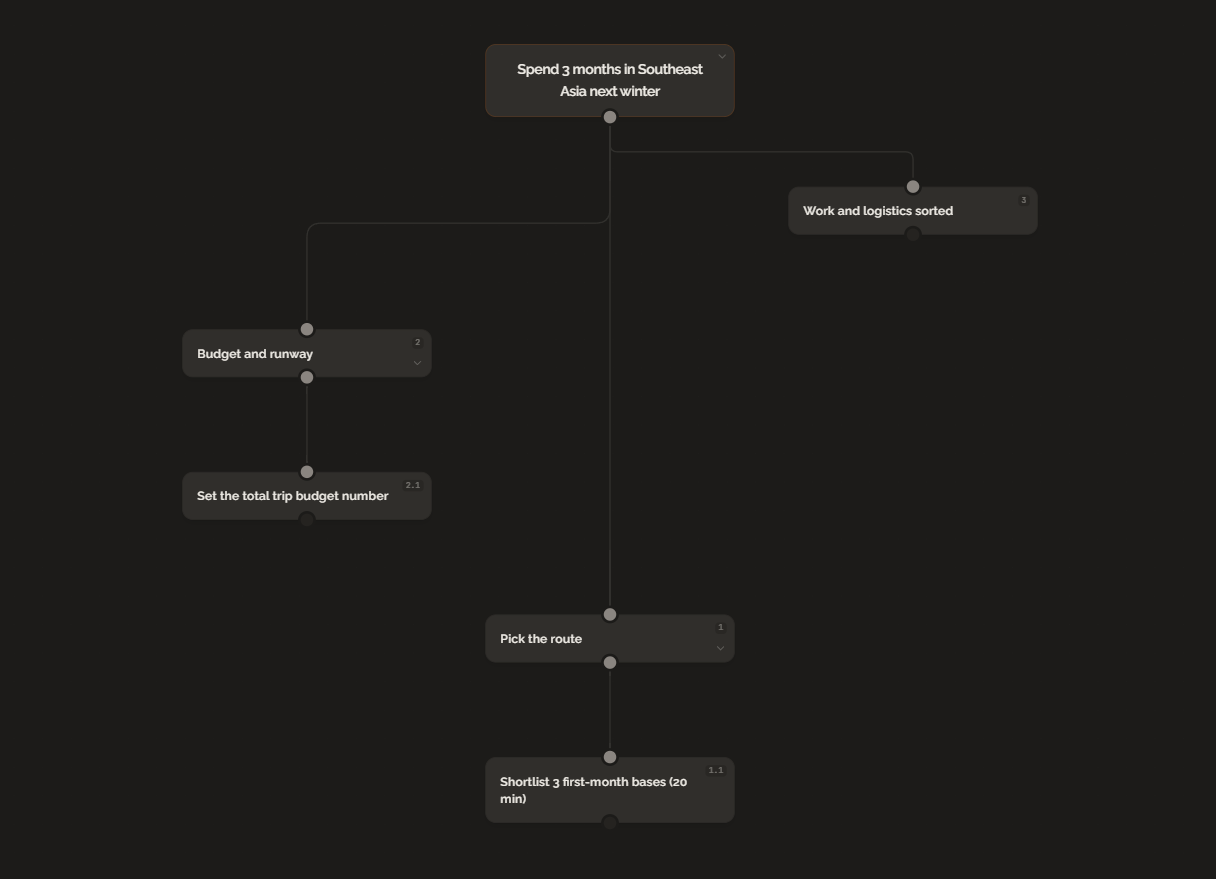
Pick the route. Which countries, in what order, and where do you land first? The branch bottoms out in a first step that takes about 20 minutes: shortlist 3 first-month bases.
Budget and runway. The trip needs a number before it needs a backpack. The first step here is setting the total trip budget, one figure that every later decision checks against.
Work and logistics sorted. Time off or remote work arranged, visas checked, home covered while you're gone.
Notice what happened: the image didn't change, but it stopped being decoration. The dream on the board now has a step you could take tonight, and that's the difference between a board you admire and a board that gets you on the plane. For a wider look at tools that handle the planning half, see our comparison of digital vision board tools.
The Bottom Line
Canva is the easiest free way to make a digital vision board, and the six steps above will get you a good one in a sitting. Just don't stop where Canva stops. Pick the one image that matters most, plan it backward until a small first step appears, and do that step this week. The board is the postcard; the plan is the trip.
FAQ
Can you make a vision board on Canva for free?
Yes. Canva's free plan includes vision board templates, a stock photo library, and downloads in standard image formats. Paid plans mostly widen the template and photo selection; for a personal vision board, the free plan is enough.
What size should a digital vision board be in Canva?
Match the size to where the board will live. Pick Canva's phone wallpaper preset if the board goes on your lock screen, the desktop wallpaper preset for your computer, or a print-sized document if you plan to hang it on a wall.
Is Canva good for making vision boards?
Yes, for the board itself. Templates, drag-and-drop editing, and a large image library make it one of the easiest free ways to design one. But Canva is a design tool: it stops at the finished image and has no way to turn the board into goals or steps.
What should you do after making a vision board in Canva?
Pick the one image on the board that matters most and plan it backward: name the goal precisely, list what has to be true for it to happen, and keep breaking those conditions down until you reach a first step that takes about 20 minutes, like shortlisting where you'd land first.
Ready to try backward planning on your own goals?
Start planning freeMore guides
Best Goal Planning Apps in 2026 (Free and Paid)
From free habit trackers to AI goal planners, here are the best goal planning apps in 2026 compared by features, pricing, and what they help you do in detail.
Digital Vision Board vs Paper: Which One Sticks?
Digital boards are convenient. Paper boards feel real. Neither turns a vision into a plan. An honest comparison and the fix to make either format work.